where to plug in headset with mic on pc?
Sep 23, 2025
Leave a message
Where you plug your headphones with a microphone into your PC depends entirely on your headphone jack. There are two types of connectors:
Port 1: Headphones with a 3.5mm jack (the most common traditional headphone jack)
These headphones typically come in two formats:
- Two separate plugs: Plug into the corresponding ports on the back (preferred) or front panel of your computer. Green plug → green port (headphone/audio output), pink plug → pink port (microphone input)
- One combination plug: Plug into the combined audio port on your computer (usually marked with a headphone icon). If your computer has a port with a headphone + microphone icon (common on laptops and some brand-name computers), plug it directly into that port.
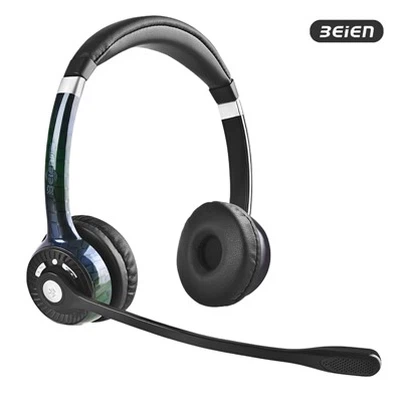
- Headset Recommendations(A26 headset): https://www.beienheadset.com/call-center-headset/qd-headset/call-center-lightweight-over-ear-headphone.html
Port 2: Headphones with a USB port
- These headphones have built-in sound cards, making connection very simple.
- Just plug the USB plug directly into any available USB port on the front or back of your computer.
- Preferably, USB ports on the back of your computer connect directly to the motherboard, providing more stable power and data transmission, and ensuring optimal headphone performance.
- Headset Recommendations(AS28 headset):https://www.beienheadset.com/call-center-headset/usb-a-headset/noise-cancelling-usb-a-binaural-call-center.html
Computer Settings After Connecting:
- After plugging in headphones, you may need to right-click the speaker icon in the lower-right corner of your computer, select "Sound," and then set your headphones as the default device in the "Playback" tab and your microphone as the default device in the "Recording" tab. This ensures the system uses your headphones and microphone correctly.
Beien website: https://www.beienheadset.com/
Facebook Page: https://www.facebook.com
Keywords: headphones for pc, usb headset with mic, best headset for pc, wired headphones, over the ear headset